
How to Check Your Deposit History
Find your deposits and see their status and details.
- 1
Log In
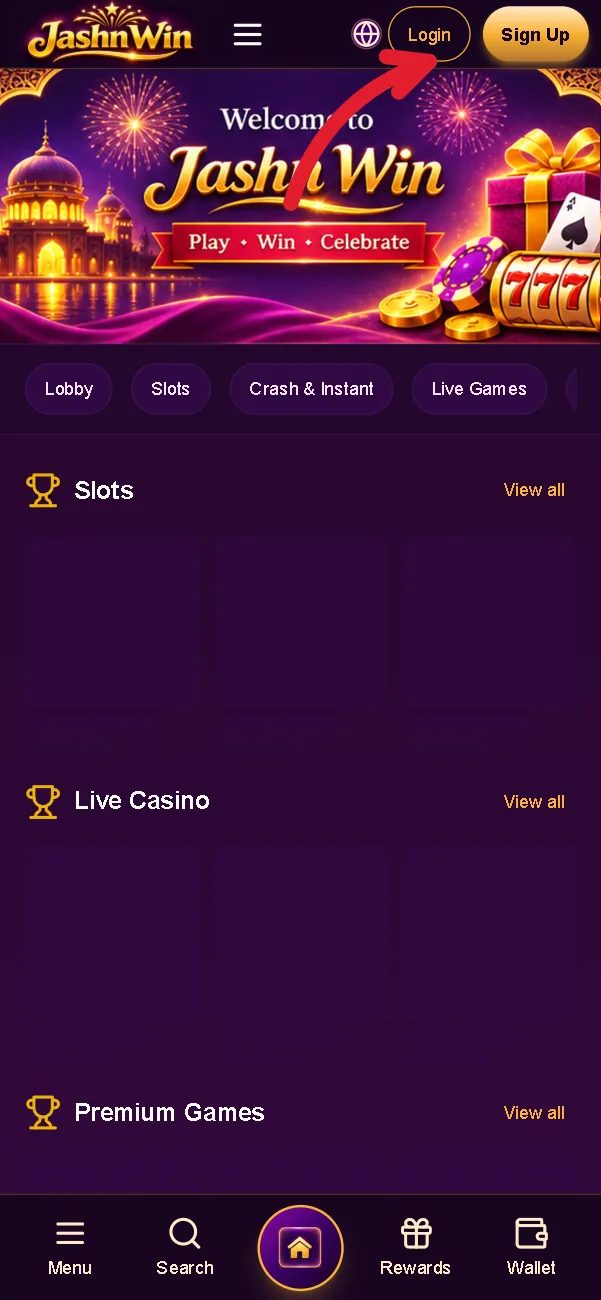
Open the website on your mobile browser.
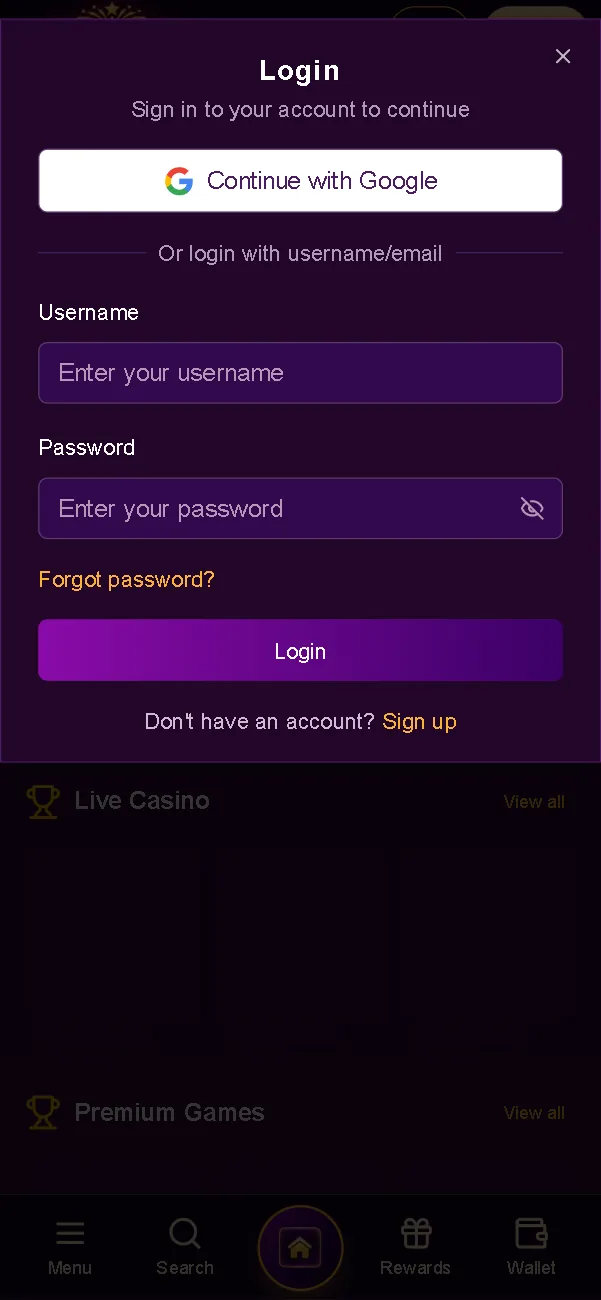
Tap Login at the top right and sign in with your account.
- 2
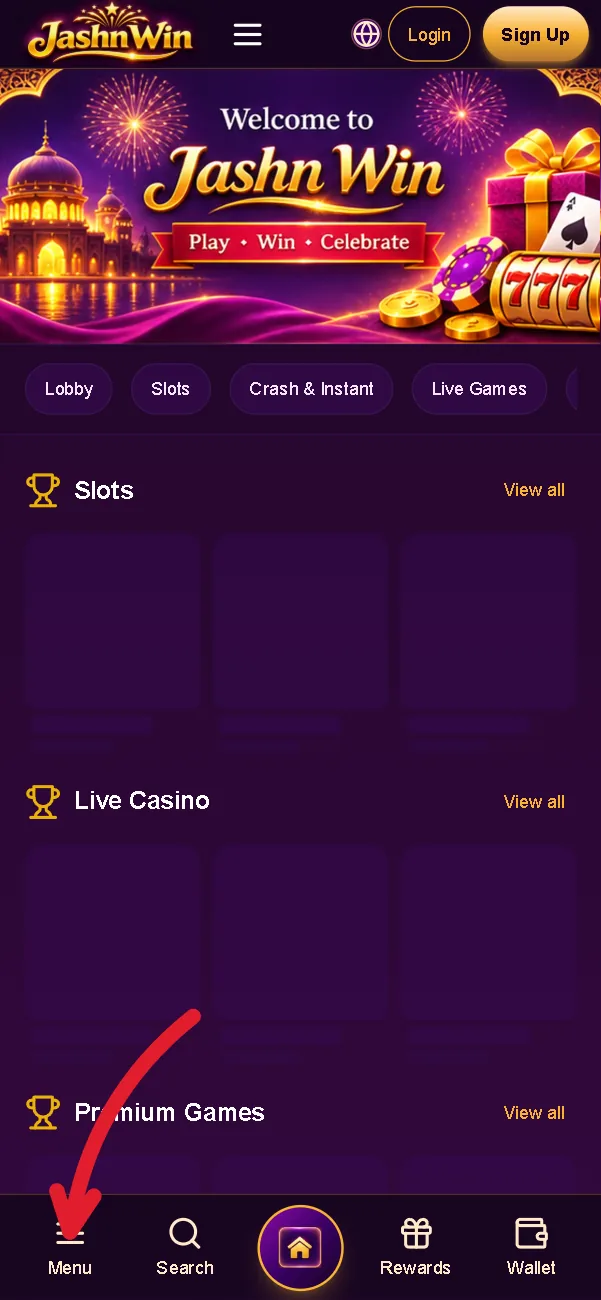
Open the Menu
Once logged in, tap the Menu icon at the bottom left of the screen.
- 3
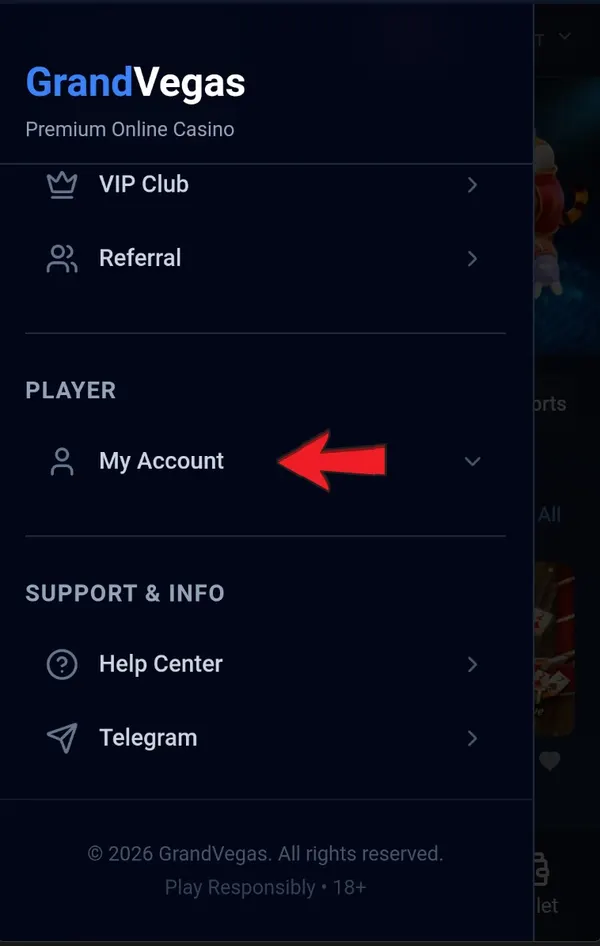
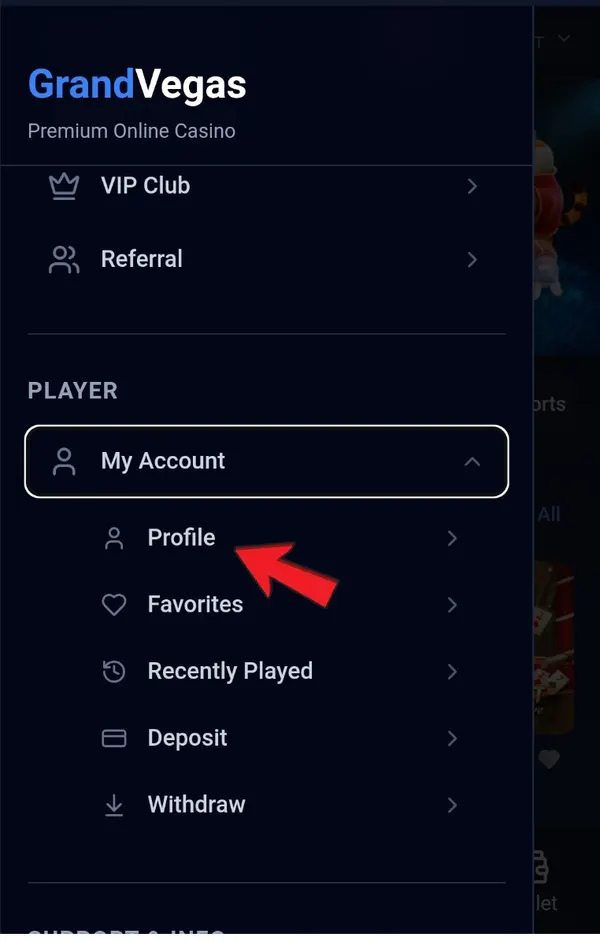
Go to the Player Section
In the menu, tap My Account.
Under My Account, tap Profile.
- 4
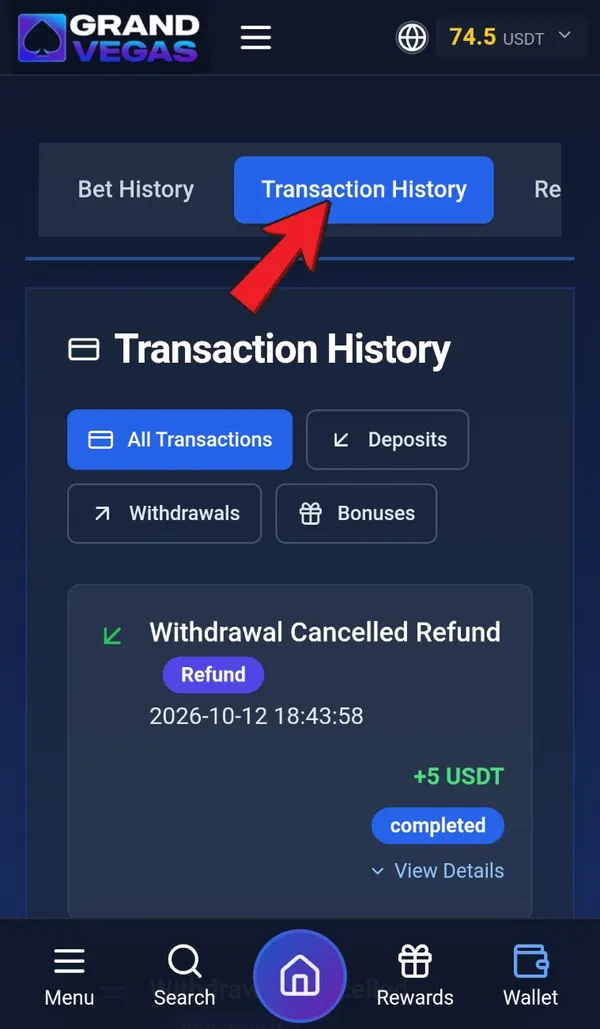
Switch to Transaction History
By default, you'll land in the Overview section.
Scroll right to left until you see Transaction History.
Tap Transaction History.
- 5
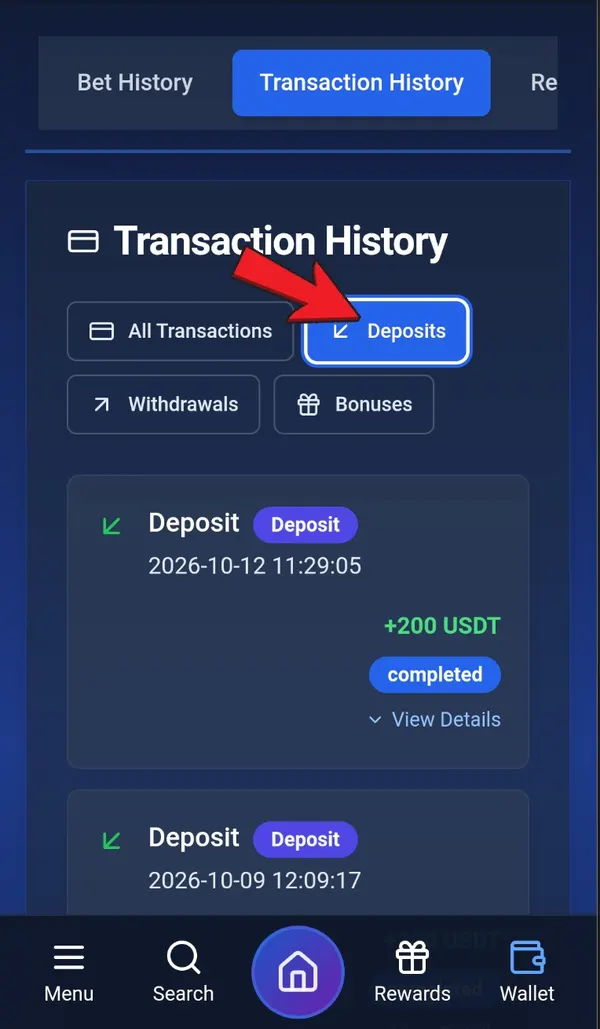
Filter for Deposits
You'll now see All Transactions.
Tap Deposit to view only your deposit history.
- 6
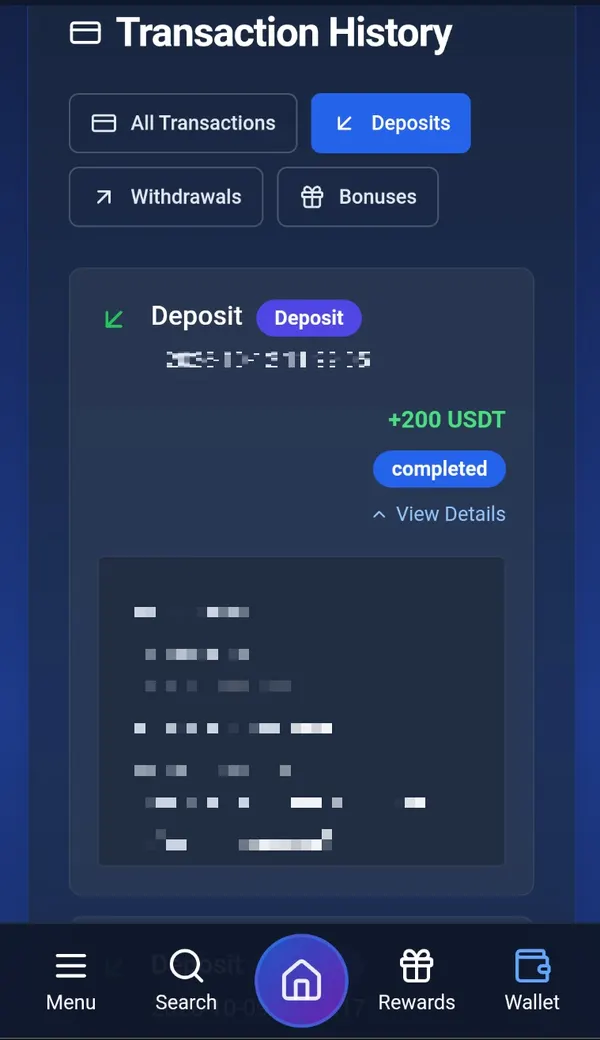
Check specific deposit details
Tap on a specific deposit to see full details, including:
- Transaction ID
- Status
- Transaction Type
- Balance Type
- Created Time
- Notes
Still need help? Visit the Help Center or email [email protected].