
How to Find and Manage Your Favorite Games
Add, remove and view your favorite games.
Step by Step: Add a Favorite
- 1
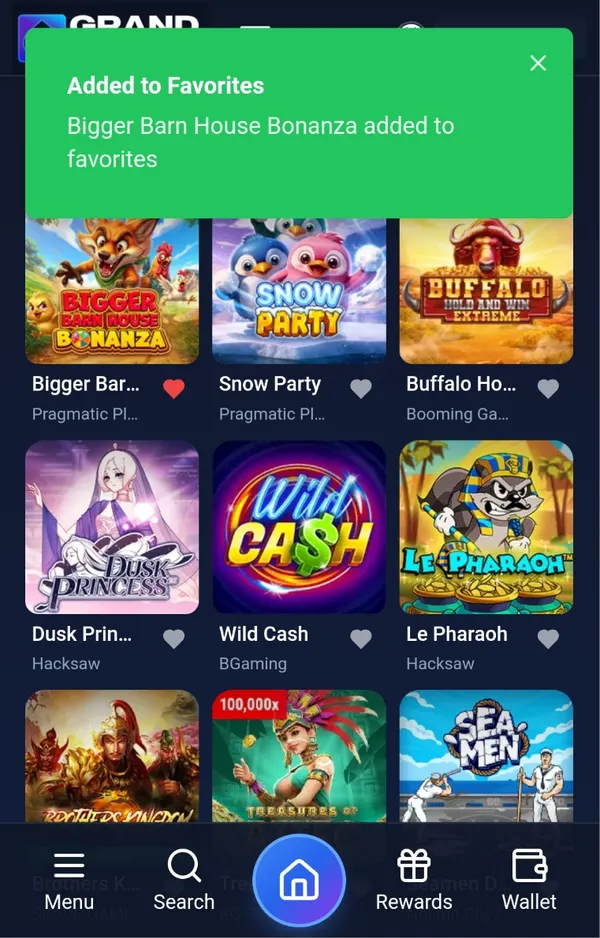
Tap the heart icon on a game tile or inside the game.
- 2
A message will appear saying "Added to Favorites."
Step by Step: Remove a Favorite
- 1
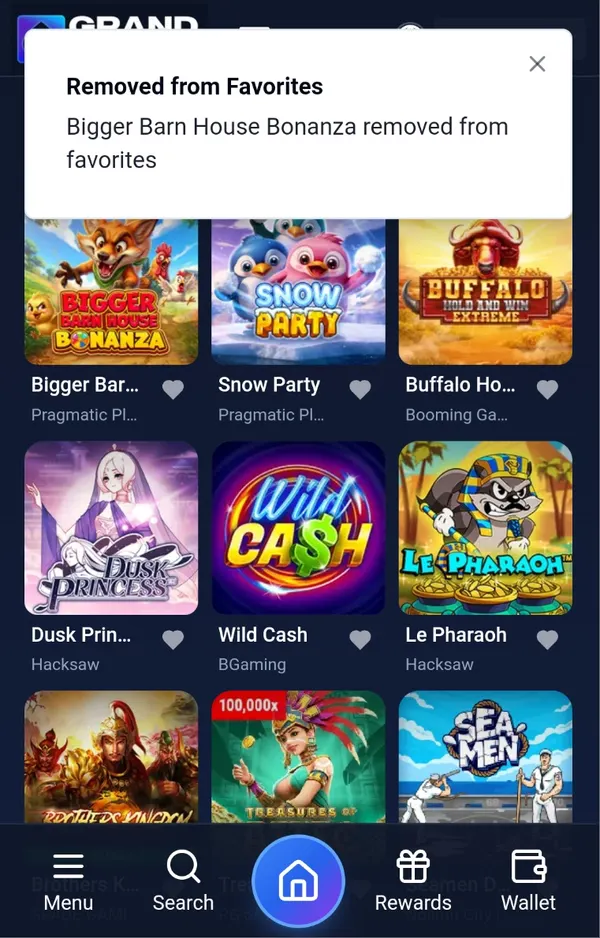
Tap the heart icon again on the game.
- 2
A message will appear saying "Removed from Favorites."
Step by Step: See Your Favorites
- 1
Open My Favorite Games from the menu or your profile.
- 2
You'll see all the games you've marked as favorites.

Recently Played
Use Continue Play to quickly access the games you opened most recently.
Helpful Notes
- Favorites are saved only when you're logged in.
- If the heart icon doesn't respond, refresh the page.
- If it still doesn't work, contact support and provide the game name.
Still need help? Visit the Help Center or email [email protected].