
How to Change Password and Forgot Password
Reset a forgotten password, or change your password from your profile.
A. If You Forgot Your Password
- 1
Go to the Login Page
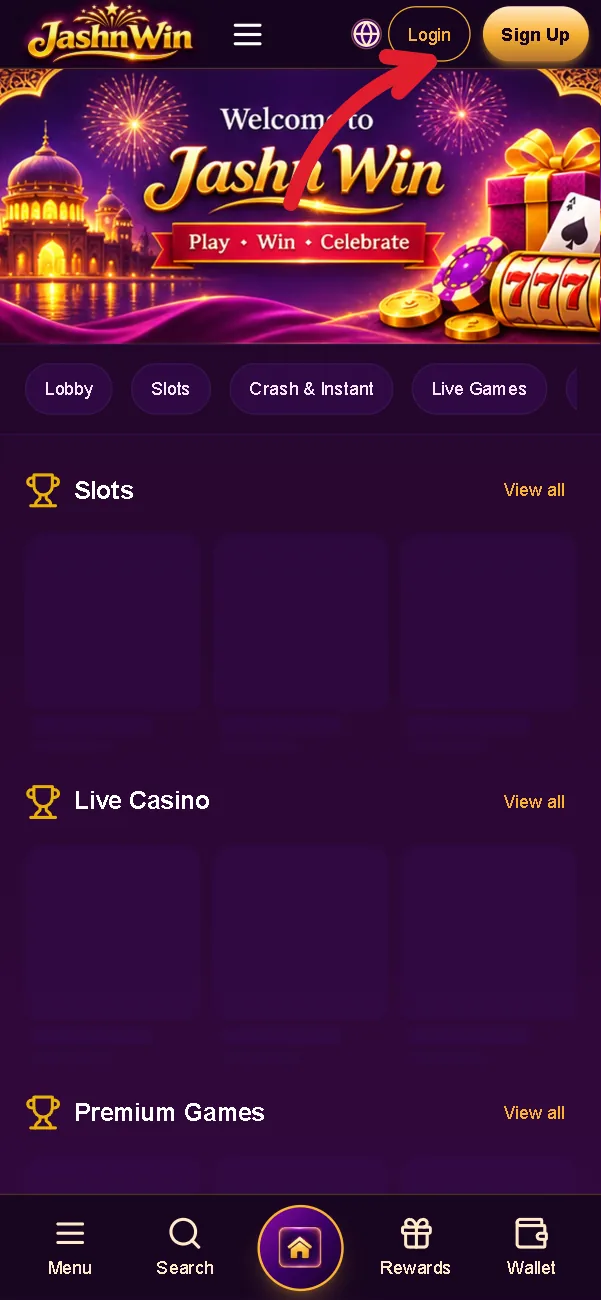
Open the website on your mobile browser.
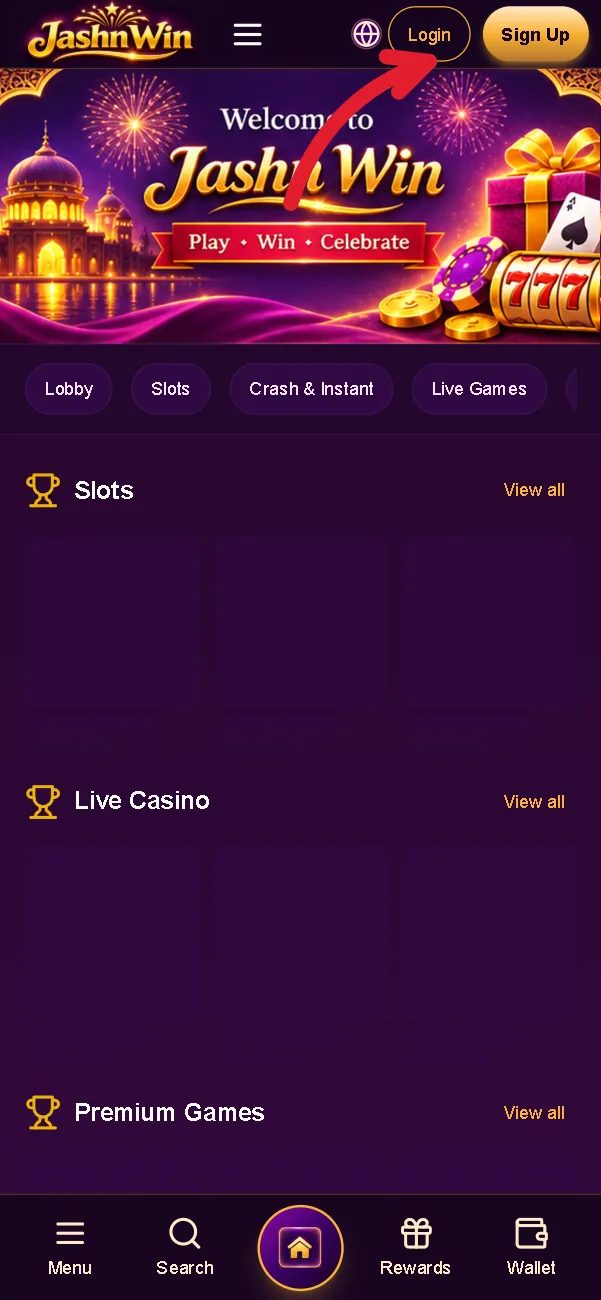
Tap Login at the top right.
- 2
Tap "Forgot Password?" and fill out the form
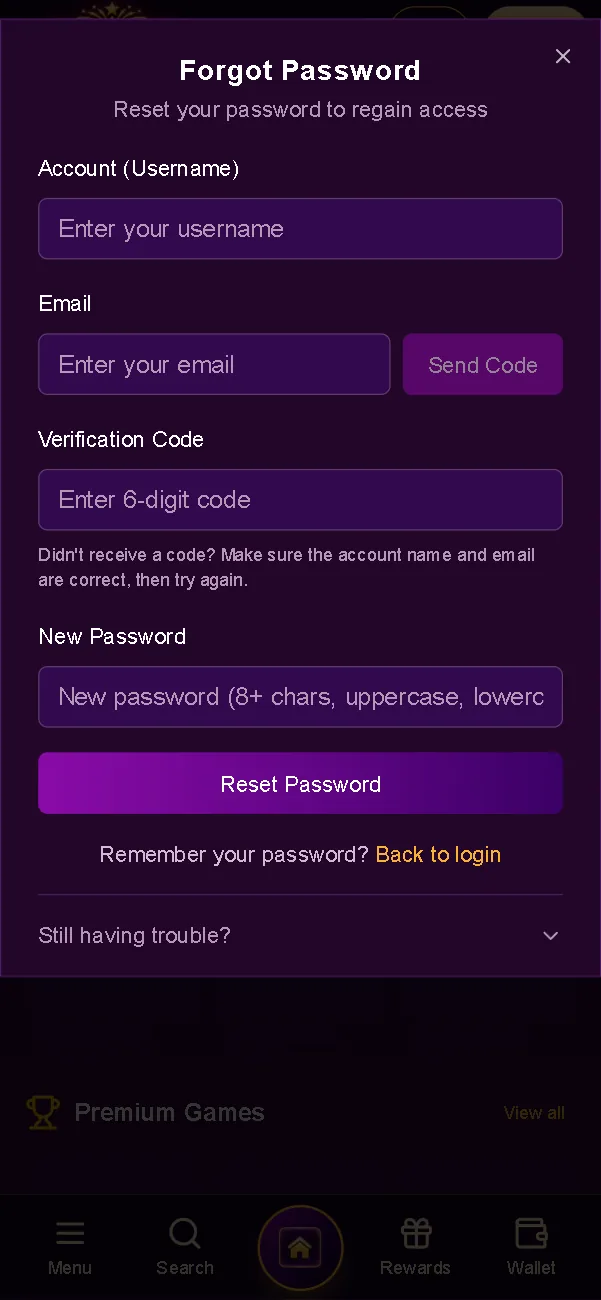
On the login form, tap the Forgot password? link below the password field. The reset form will appear. Fill in the following fields:
- Account (Username): Enter your username.
- Email: Enter your registered email, then tap Send Code.
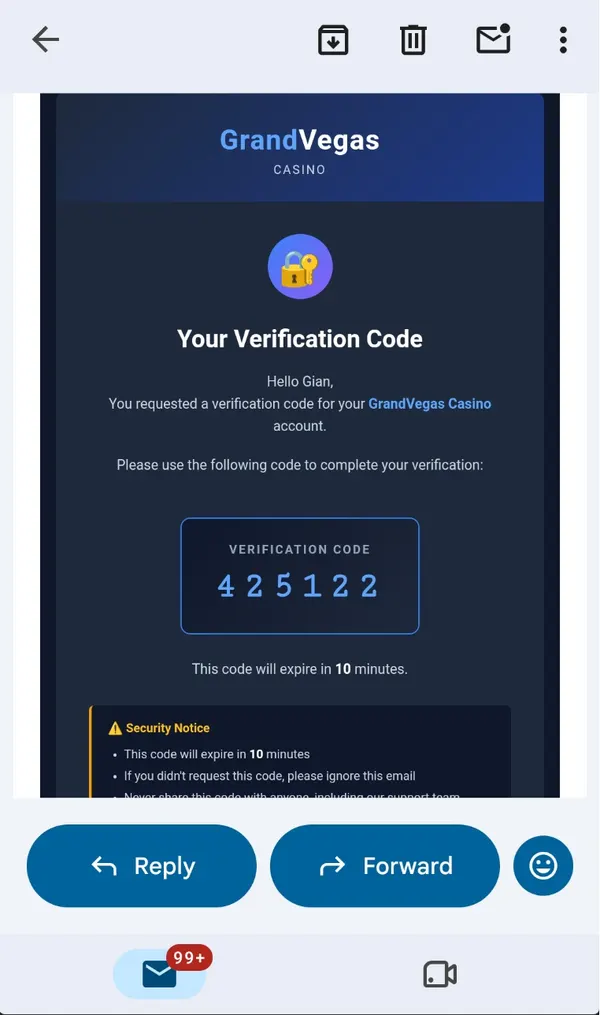
- Verification Code: Enter the 6 digit code sent to your email.
- New Password: At least 8 characters, with uppercase and lowercase letters and numbers (special characters make it stronger).
- 3
Log in with your new password
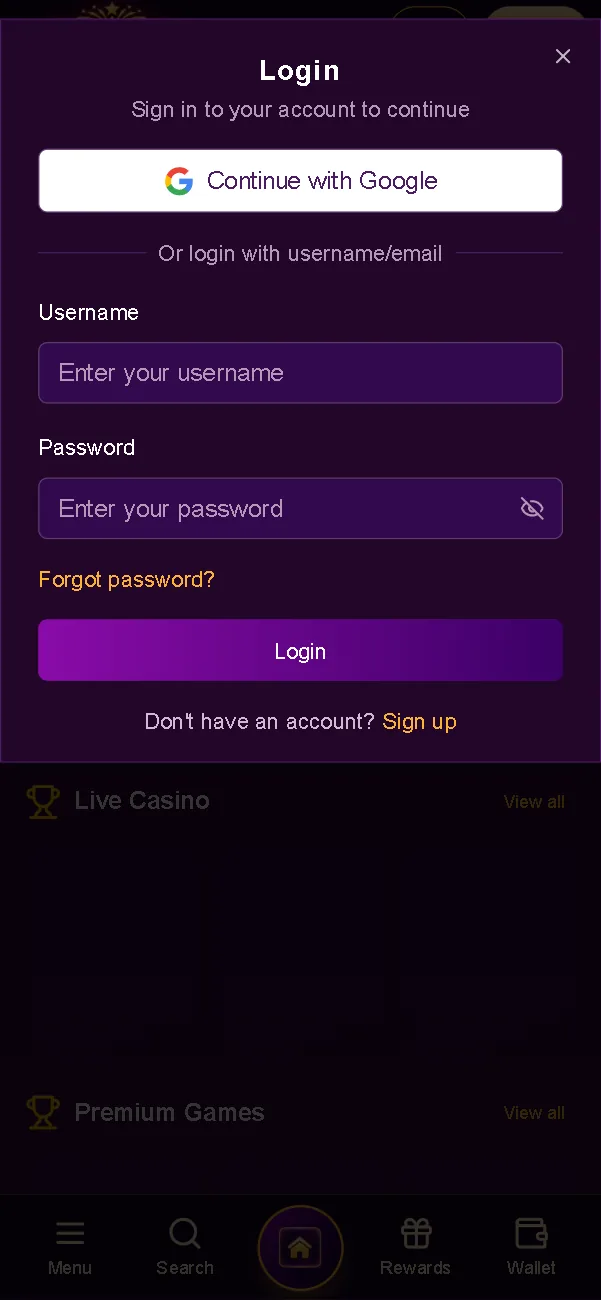
- Return to the login page.
- Enter your Username/Email and the new password.
- Tap Login to access your account.
B. Change Your Password
- 1
Go to the website
Open the website on your mobile browser.
Tap Login at the top right and sign in with your account.
- 2
Open the Menu
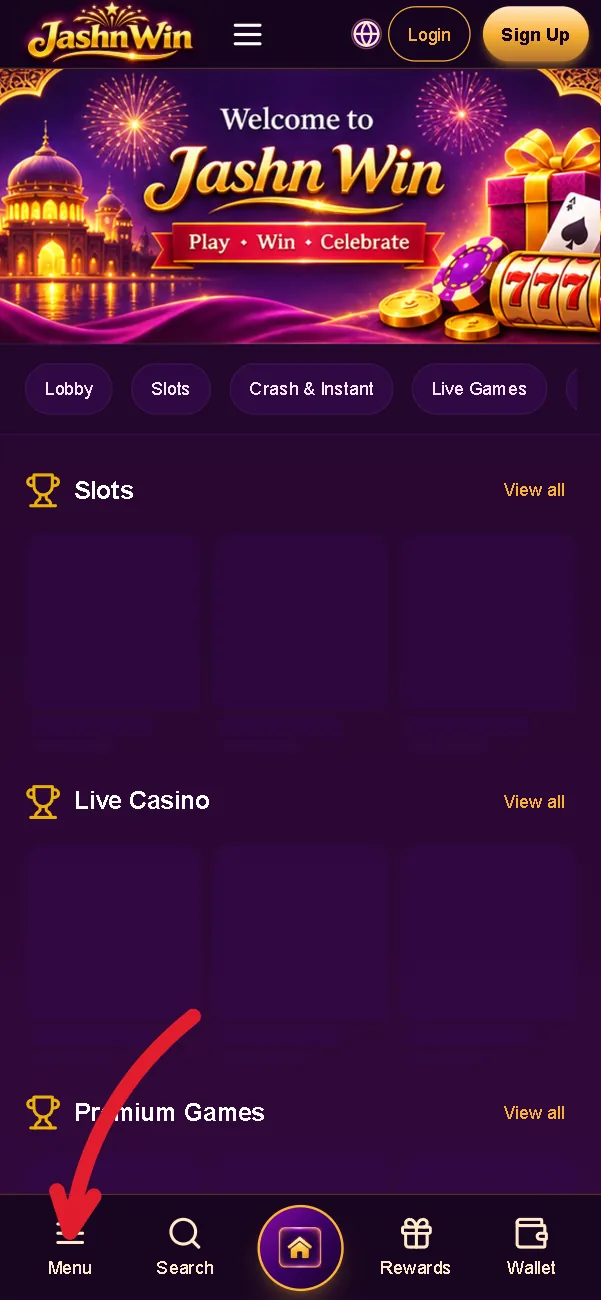
Once logged in, tap the Menu icon at the bottom left of the screen.
- 3
Go to the Player Section
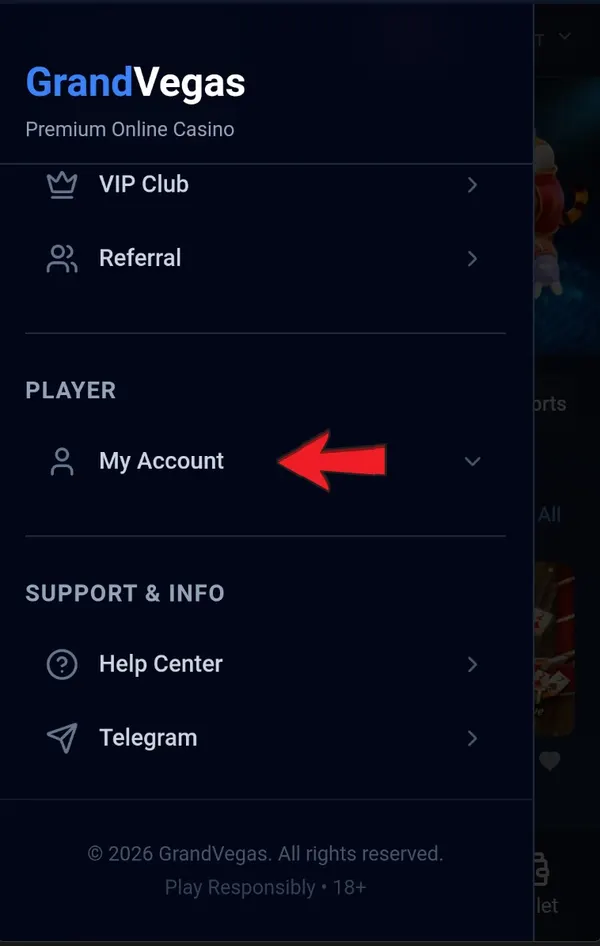
In the menu, tap My Account.
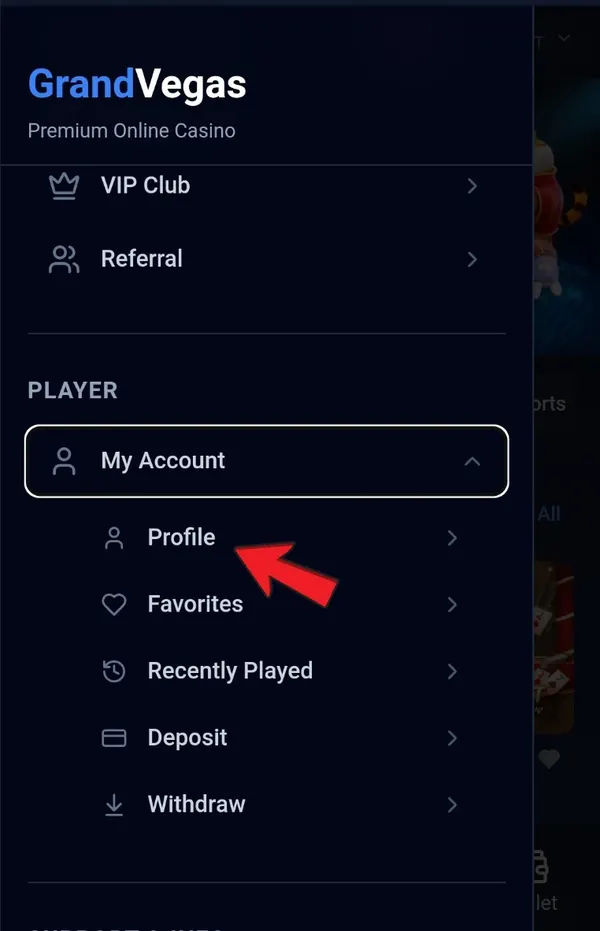
Under My Account, tap Profile.
- 4
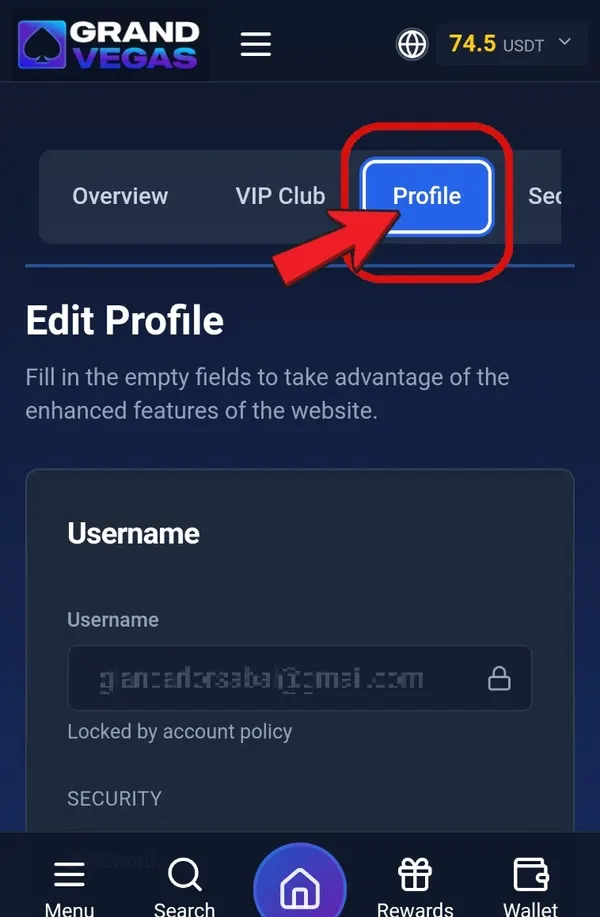
Open the Profile Overview
On the Profile page, you'll see the Overview tab beside VIP Club.
Tap the Profile section.
- 5
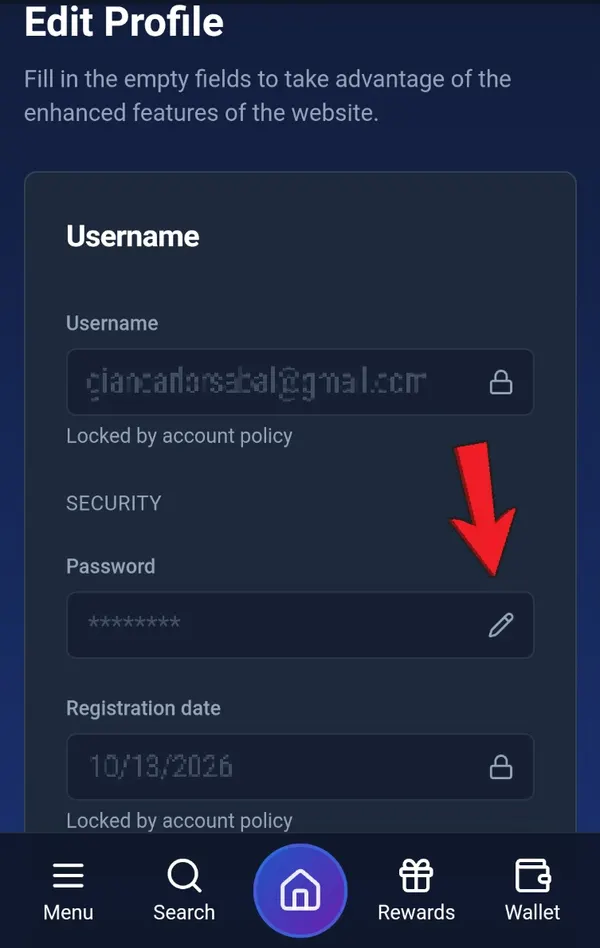
Go to the "Edit Profile" section
Inside the Profile area, select the Edit Profile section.
Look for the Password field.
Tap the pencil icon next to Password.
- 6
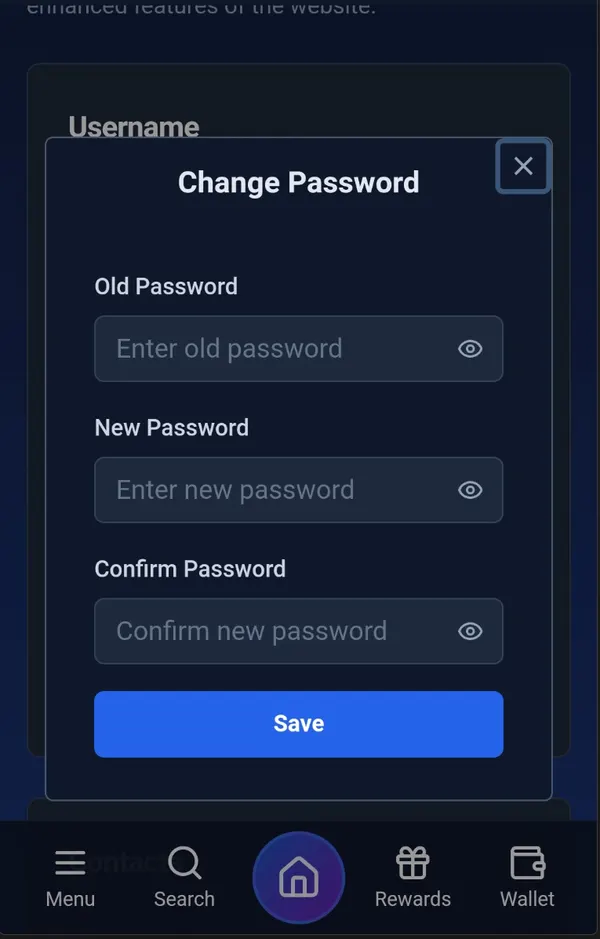
Enter your passwords
- Type your current password.
- Enter your new password (at least 8 characters, with uppercase, lowercase and numbers).
- Confirm your new password by typing it again.
- 7
Save and log in again
Tap Save to update your password.
Log back in with your new password to access your account.
Still need help? Visit the Help Center or email [email protected].